
Home > Document Control > Document Control Tasks: Pro-Active Reviewers and Document Owners > Monitoring Review Status > Finding Documents That Are Being Reviewed >
Searching Review Status Using the Drill-Down Search
Valid fields for search review status using the Drill-Down search are:
- In Revision. Displays all documents for which Step 1 is checked.
- Waiting Revision. Displays all documents that have open review activities.
- Revision Complete. Displays all documents that have open revision complete activities.
- Waiting Signatures. Displays all documents that have open signature activities.
- Signatures Complete. Displays all documents that have open signature complete activities.
- Standalone Signatures Required. Displays all documents that have standalone activities.
- Approved. Displays all documents that have been electronically approved (requires one e-signature only).
- Inactive. Displays all documents that are not active in the system.
- Published. Displays all documents that are published and have no electronic signature.
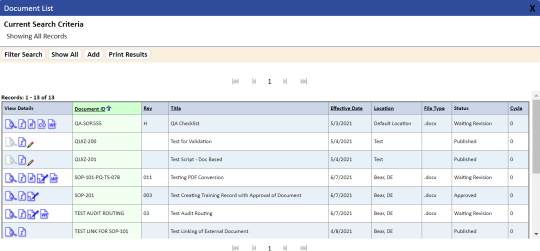
To find documents in the review stage using the Drill-Down search:
- Click Document Search under My TMS on the Main Menu side panel.
- Click the + icon in front of Drill-Down Search to expand its options.
- Click the + icon in front of Document Status.
- Select the specific status you would like to search.
- Click the Do Search button.
NOTE: If you are having problems finding documents, click the Reset Fields button to make sure there are no filter options already set that could affect either the results from a Favorite search or a Drill-Down search.